When protecting SAP landscape with SCN encryption on GUI and RFC, there are 2 parameters that can block all not-encrypted traffic: snc/only_encrypted_rfc and snc/only_encrypted_gui.
Before setting these parameters, you first want to know which interfaces and GUI connections.
Logging settings
To enable the logging, setup in SAP audit log transaction SM20 (or RSAU_CONFIG) the BUJ event for non-encrypted communication:
Next to this set RZ10 parameter snc/log_unencrypted_rfc to value 2 to also log the unencrypted RFC’s.
Warning: if you have many RFC's and start to encrypt them, this event can generate massive amounts of logging. Consider to switch on temporarily to log limited amount of time to get the first work list.
Audit log results for unencrypted RFC and GUI
Use transaction SM20 or RSAU_READ_LOG and select event BUJ.
Unencrypted RFC looks like this for ABAP to ABAP:
And for external RFC to ABAP:
In the details you can find the source IP address.
Unencrypted GUI usage looks like this:
In the Terminal Name column you can find the desktop/laptop of the user still using unencrypted GUI.
You might use SAP FIORI. After some time older FIORI tiles and corresponding ODATA services are move to newer FIORI or different applications. Or users might stop using certain FIORI applications (mostly due to lack of functions that are present on SAP GUI and missing on FIORI). From security point of view, you want to de-activate these non-used FIORI SICF services and ODATA services.
The SAP audit log records transactions, program executions and much more. But it cannot answer questions that are more sensitive. For example, how can you proof that your employee did or did not see a bank account number, or a basic salary pay? Here is where the RAL read access logging function will help. It will record if a user did have display access to a sensitive field (and the value shown to the user). It can be used to proof a user did see. Or when there is no logging (and the logging is setup correctly), help the employee to proof he/she did not see any sensitive data.
This blog will explain the technical setup. Please do check carefully any privacy, legal, HR and other implications of switching on this functionality.
The product is in most cases part of the Netweaver license. Do check with your SAP account manager.
Questions that will be answered in this blog:
How to setup up RAL from the basis technology side?
How to create a RAL recording?
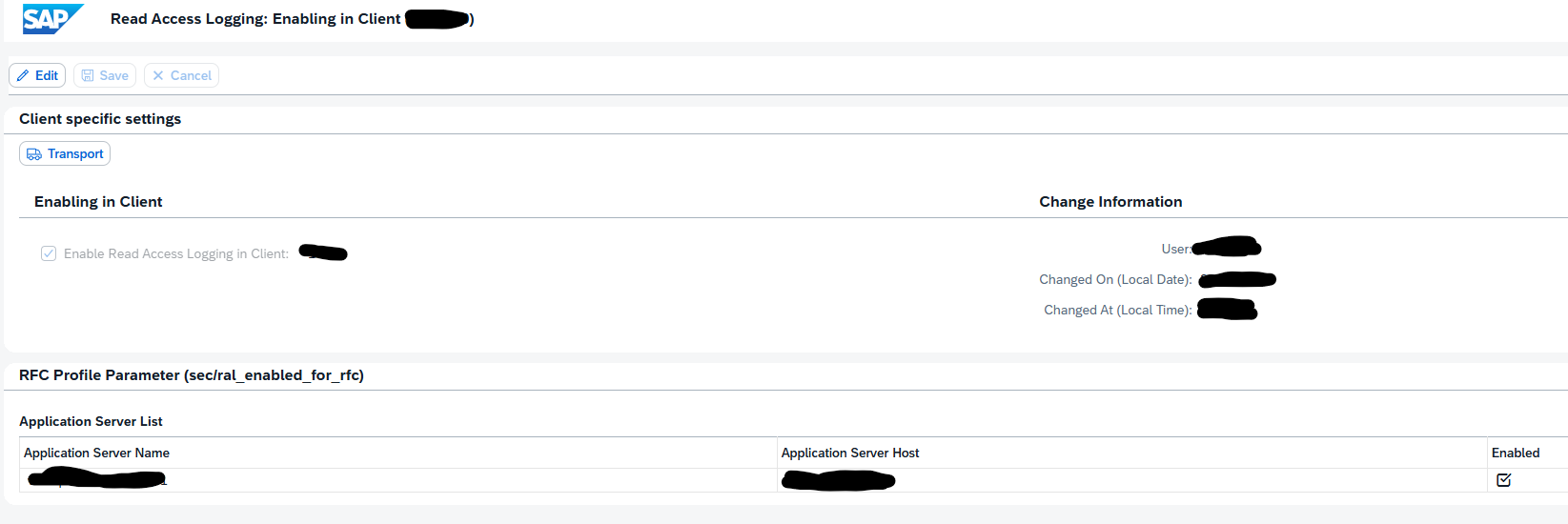
How to activate RAL?
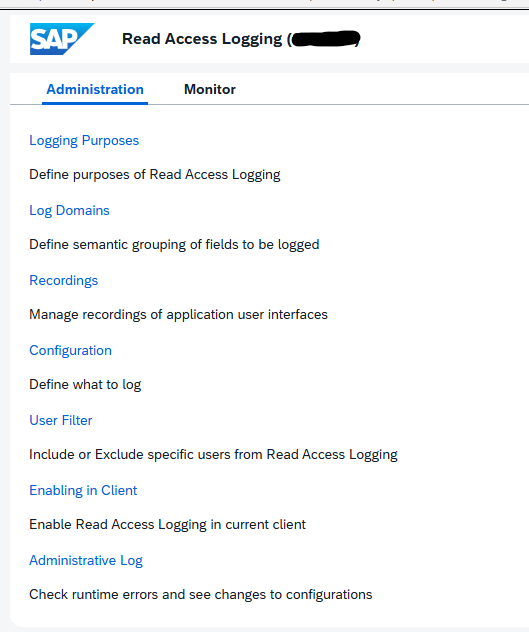
How to use RAL monitoring?
RAL technical setup
Activate in SICF transaction the following services:
SRALCONFIG
SRALMANAGER
SRALMONITOR
SRALUTIL
If needed set in RZ11 the parameter sec/ral_enabled_for_rfc to 1.
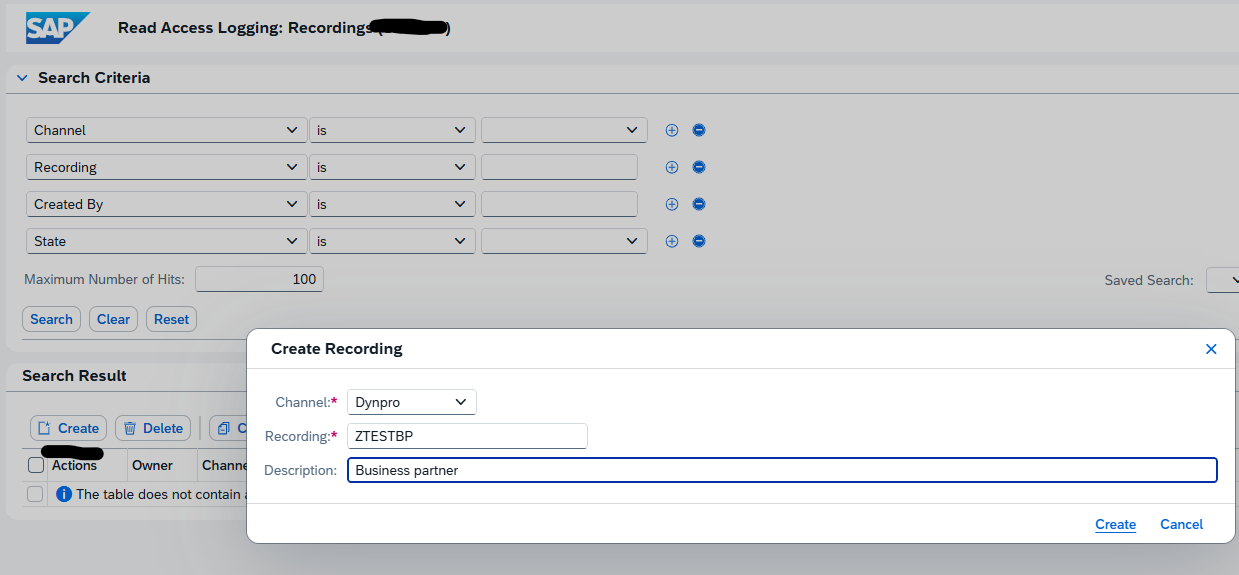
A recording is needed to indicate which fields need to be added to the read access log. In transaction SRALMANAGER, choose recordings and then create a new one:
We use the example ZTESTBP for business partner.
In the line for the recorder there are 3 buttons:
First one is to display. Second one to start the recording.
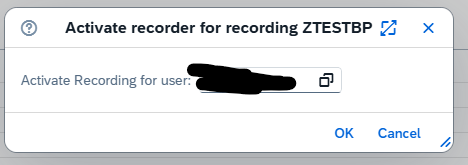
Third one is to add the recording user.
Start the recording:
Now important: keep the web session open.
Go to the SAP GUI and execute your transaction. When you want to add a field to the RAL logging, select the field, press CTRL, right click and select the option “RAL: record field” or use the CTRL+L shortcut.
If you do not add fields the recording is empty!
When completed go back to the RAL admin web screen and press the icon to Stop the recording.
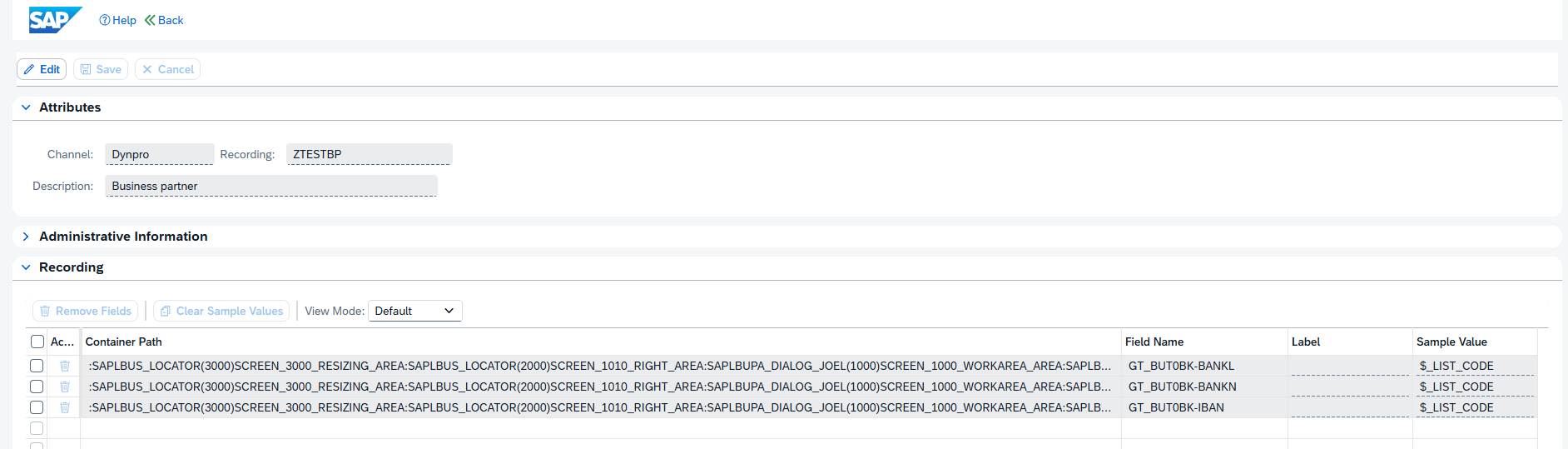
Now you can display the recorded fields:
Create a RAL configuration
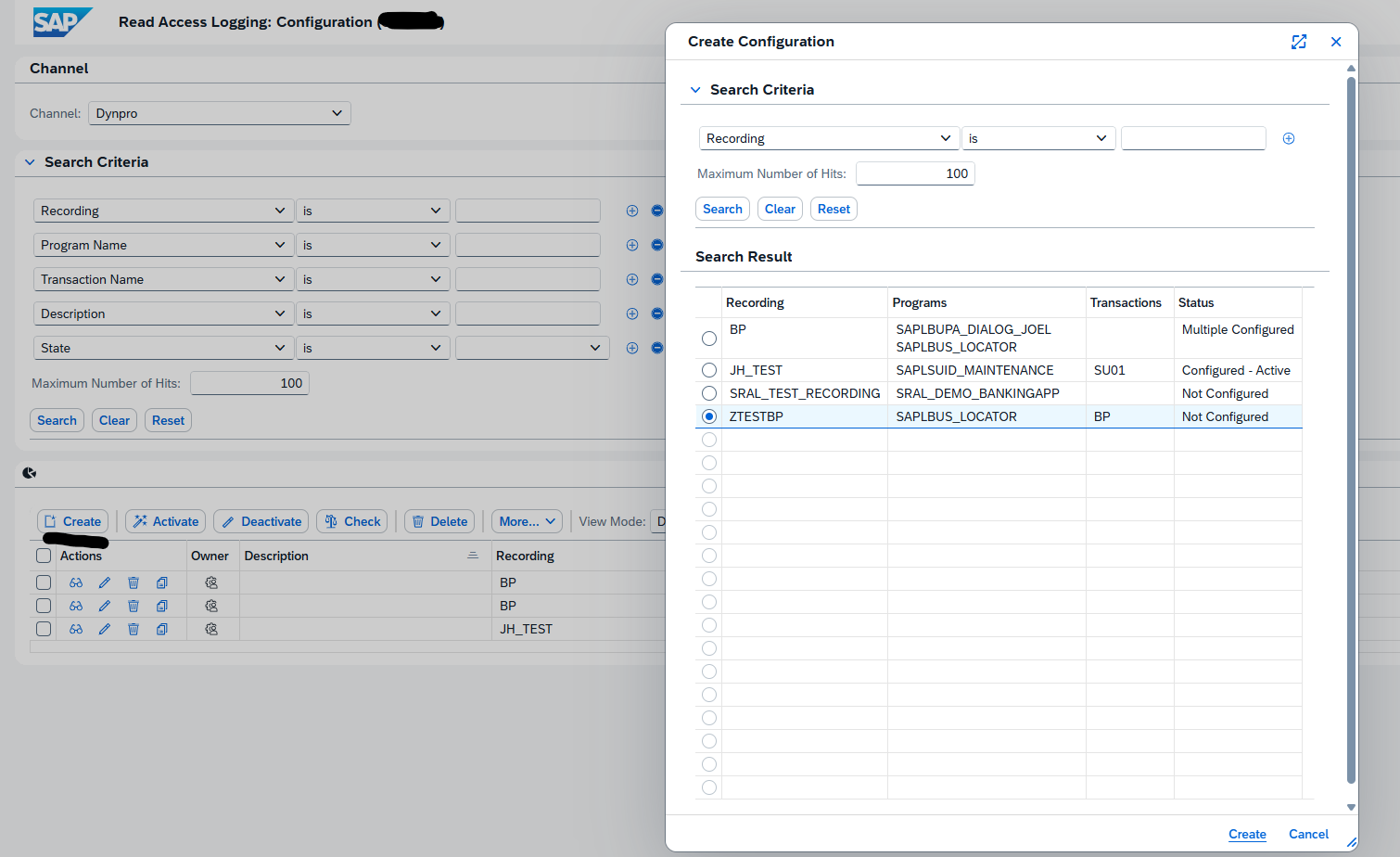
We can now use the recording to create a configuration. In the transaction SRALMANAGER choose configurations and create a new one:
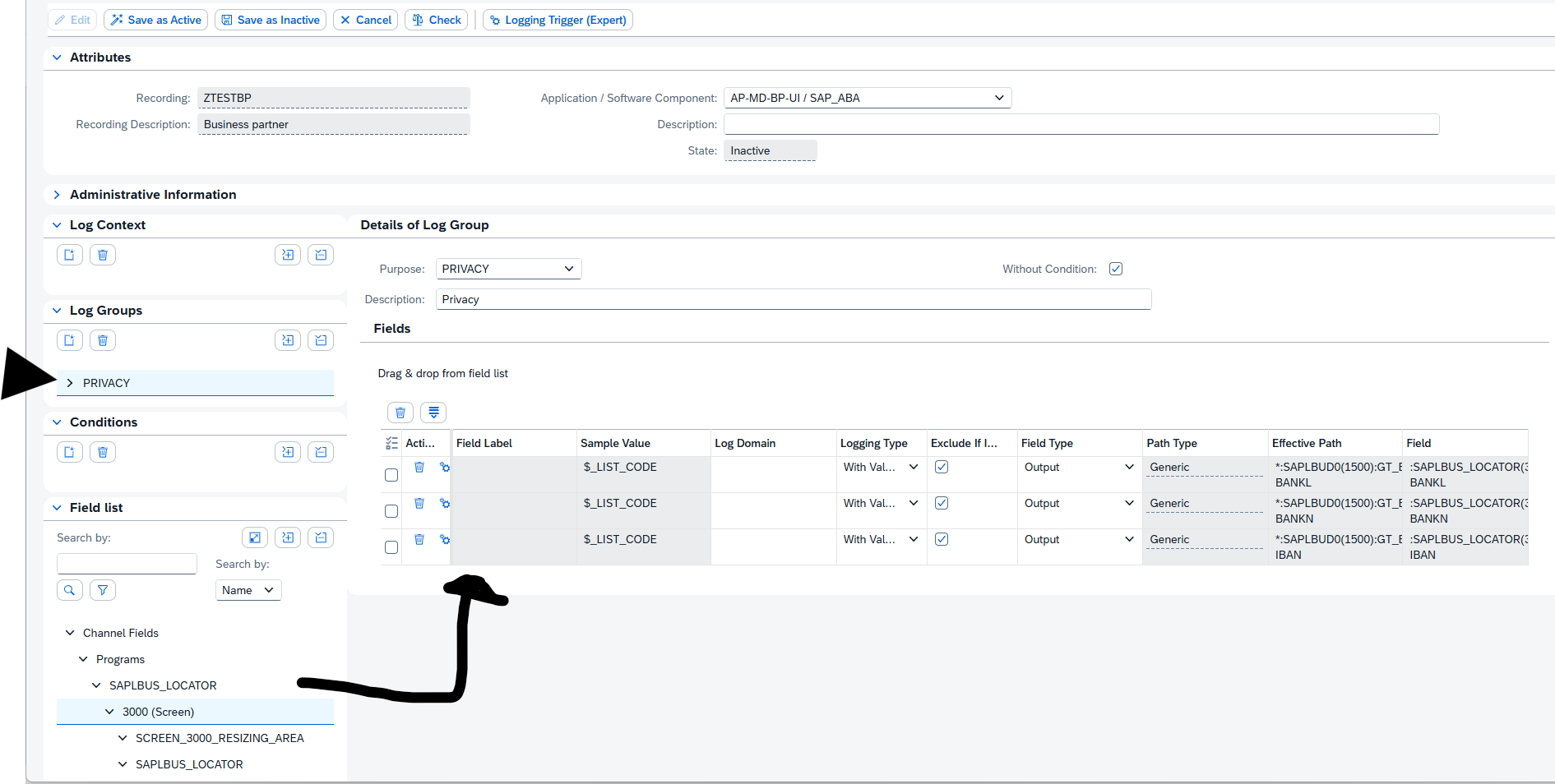
In the new complex screen, create a new log group. Then drag and drop from the field list on the bottom left to the target fields:
Then first Check the consistency and when ok, activate the configuration:
Using the RAL logging database
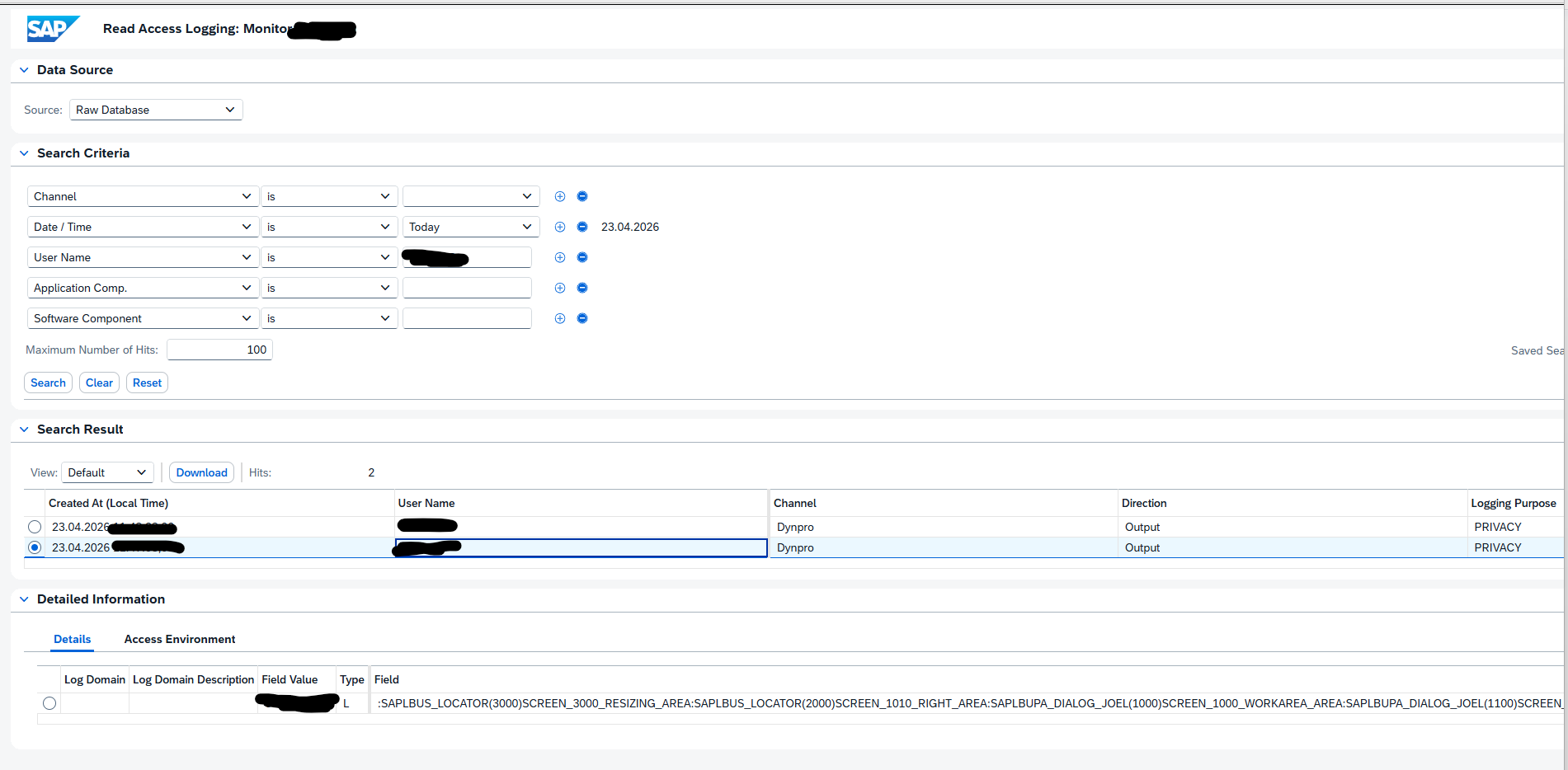
In the administration use the second tab for monitoring, or use transaction RALMONITOR to jump directly to the monitoring database. Important here: select the RAW database first! Then select your criteria:
In the search results you can select the details. In the Field Value at the bottom, you can see the actual value that the user has seen on its screen.
RAL and performance
In the help file there is this warning:
Using RAL requires system resources. This can have a strong impact on your system performance, depending on the number and type of logs.
Any user can add favorite transactions to his personal menu. This can be done in the SAP menu by right clicking on the menu and select the option add to favorites.
Sharing favorites
A user can share favorites by downloading them and sending the file to another user to upload. Upload or download to PC: go to menu Favorites and select Download to PC or Upload from PC. Reference OSS note 456728 – Easy Access: download/upload of favorites.
Technical parts of favorites
The tables for favorites are explained in OSS note 2169093 – User favorites are missing:
SMEN_BUFFC – Table for Storing Favorites
SMENFAVDAT – Date of Last Change to Favorites
SMEN_BUFFI – Links for Favorites
Currently there is no know mass download/upload program for user favorites. Custom program can be written using function modules MENU_FAVORITES_DOWNLOAD and MENU_FAVORITES_UPLOAD.
Favorites across versions
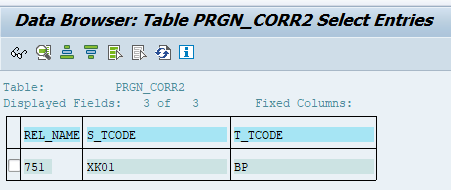
When upgrading to a newer SAP version, transactions get updated as well. Example in SAP ECC transaction XK01 is used for creating vendors. In S4HANA this is replace with transaction BP.
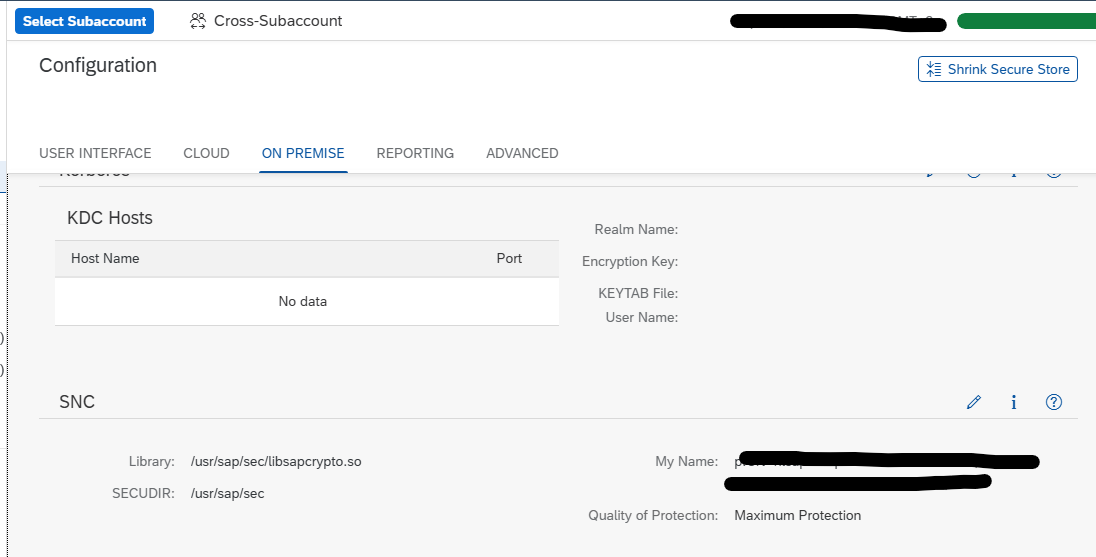
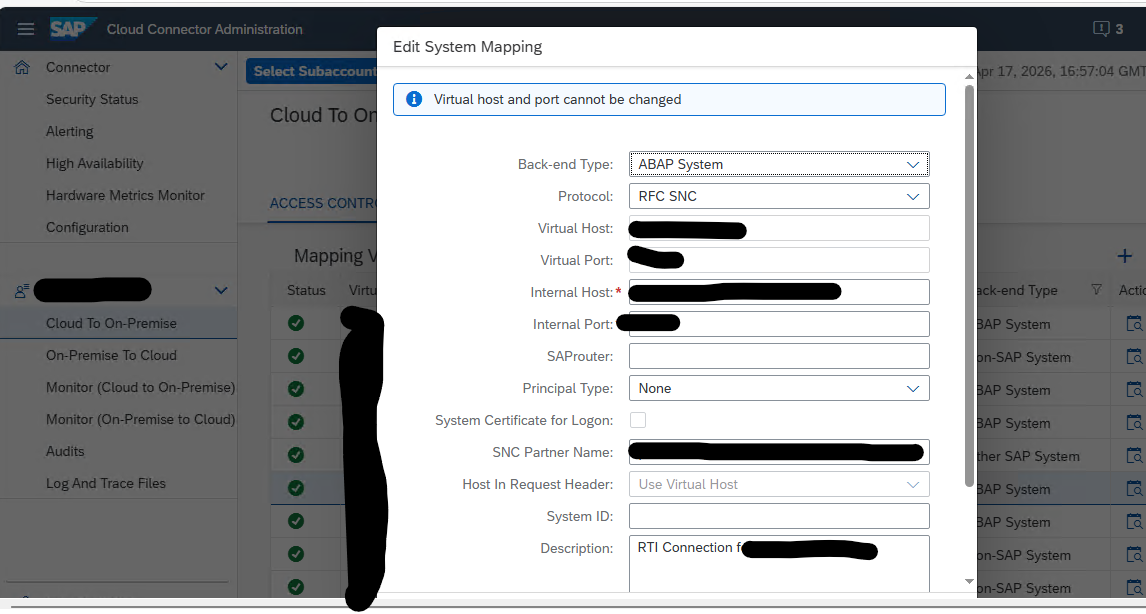
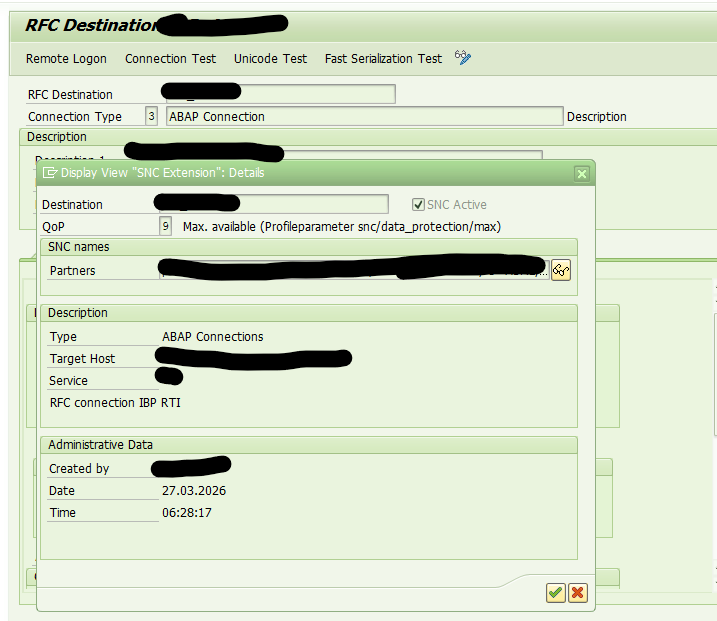
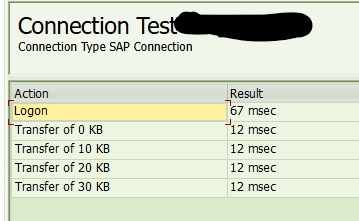
Secure Network Communication (SNC) is a key requirement in enterprise landscapes where SAP BTP interacts with ABAP systems via SAP Cloud Connector (SCC). Enabling SNC ensures encrypted RFC communication, mutual authentication, and end‑to‑end protection of sensitive data.
This blog provides a generic, implementation‑ready guide for enabling SNC between SAP Cloud Connector and SAP ABAP systems. It combines the official SAP documentation with hands‑on technical steps commonly followed in real projects.
This blog is a continuation of the generic setup explained in the blog on this page.
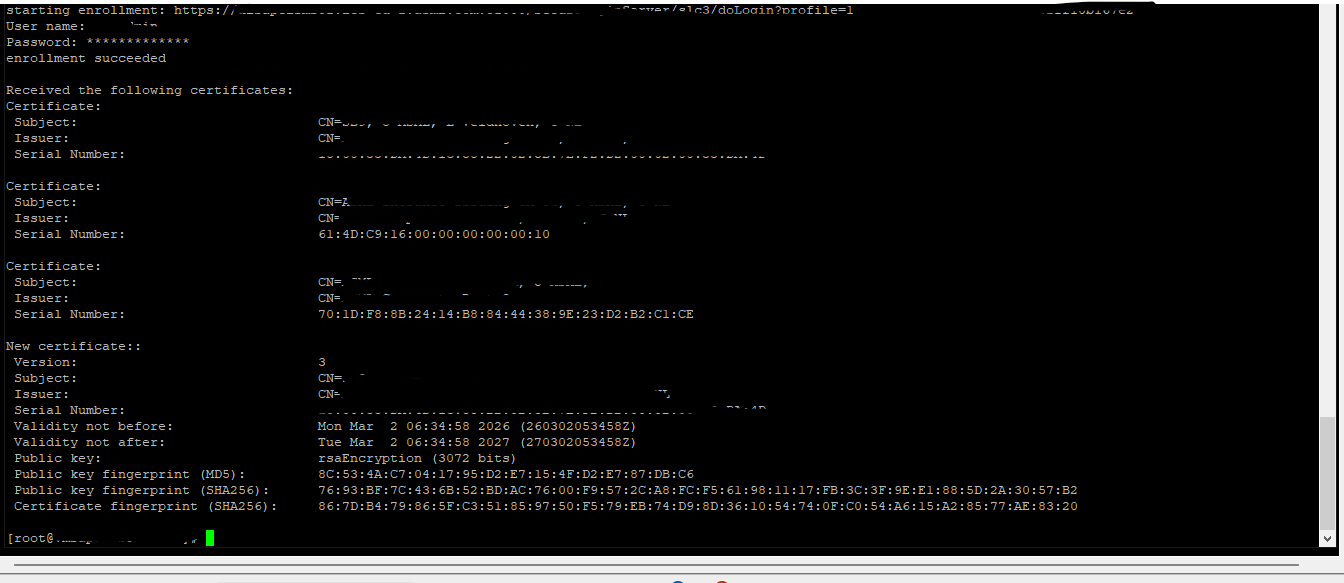
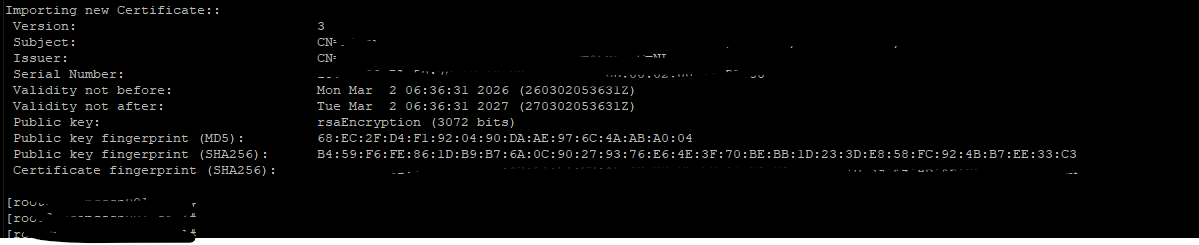
Many SAP components running on Linux (Host Agent, Web Dispatcher, Message Server, and HANA) store their certificates in local PSE files instead of STRUST. To automate certificate enrollment and renewal, these components use two tools:
sapgenpse → creates PSE files and generates CSRs
sapslcscli → enrolls and renews certificates through SAP Secure Login Server (SLS)
This page describes the generic and simplified approach for automating certificate enrollment and renewal for:
SAP Host Agent
SAP Web Dispatcher
SAP Message Server / ICM (Linux)
SAP HANA pse
All of them use the same command‑line workflow.
Process:
1. Create the Registration PSE (ra.pse)
This PSE is used by the system to authenticate with Secure Login Server (SLS).
-g 365 = renew 365 days before expiry. (you can adjust it) Each SLS certificate profile has its own metadata URL. Renewal replaces the certificate in the PSE automatically
7. Automate with a Cron Job (Linux Scheduler)
To enable automation, configure a cron job that periodically executes the renewal command with the corresponding SLS certificate profile.
We use background job in SAP ABAP and Job Scheduler in SAP JAVA system. In case of non-ABAP non-JAVA systems we can use OS tool like Cron jobs to execute this script on daily basis.
Explanation of Each Placeholder:
Placeholder
Meaning
<PSE_PATH>
Directory where PSE files are stored (e.g., /usr/sap/<SID>/<INSTANCE>/sec)
<sapslcscli_path>
Directory containing the sapslcscli executable (e.g., /usr/sap/<SID>/<INSTANCE>/exe)
<SLS_Renewal_Profile_URL>
Metadata URL of the specific SLS certificate profile used for renewal
-g 30
Renews the certificate 30 days before expiry (you can adjust this)
Now all certificates can be renewed automatically using command line tool of SLS server and it will save manual efforts by enabling automation using SLS certificate life cycle management functionality.
This blog is a continuation of the generic setup explained in the blog on this page.
To enable certificate automation in an AS Java system, you must first deploy the Secure Login Library 3.0. (official help.sap.com link). The operating‑system‑independent package is delivered as an SCA file, which can be installed on AS Java through the telnet deployment tool.
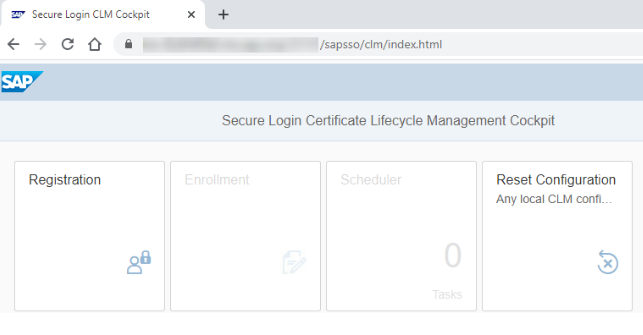
Once deployed, the system automatically provides access to the CLM application, available at: https:/<host>:<port>/sapsso/clm
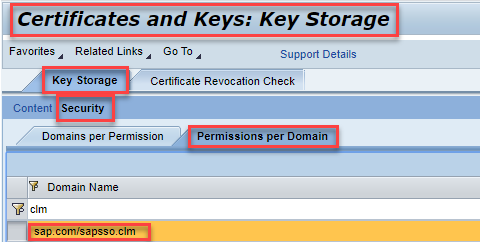
In the NWA, go to Configuration → Certificates and Keys. Under Key Storage, open Security → Permissions by Domain, search for the CLM application, and grant it full access to the keystore views that should be renewed automatically.
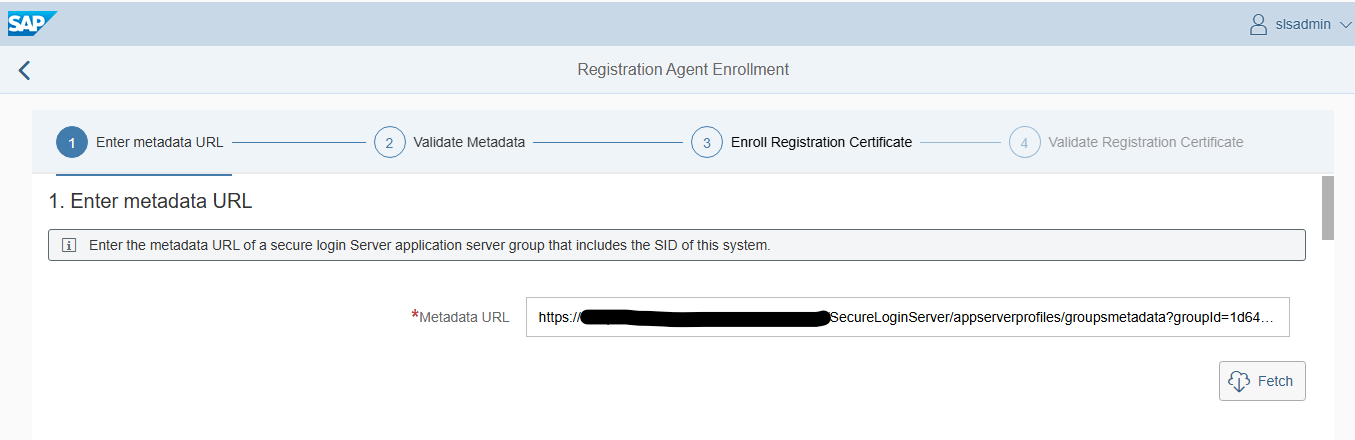
Open the CLM application in the browser. Start by registering the system (initial enrollment).
Enter the metadata URL and click Fetch.
When prompted, log in with a user allowed to perform CLM enrollment.
Click Register, then Save
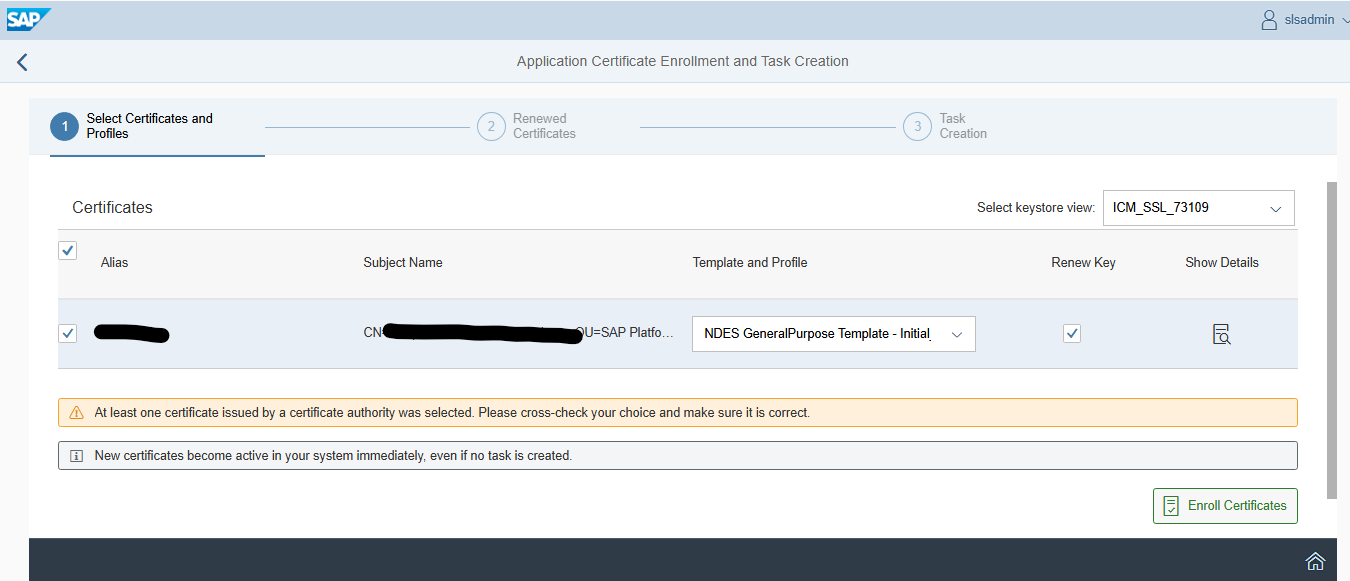
To renew certificates, go to the Enrollment tile.
The metadata URL is already stored, so select the keystore view and the certificate you want to renew.
After choosing Enroll Certificates, the updated certificates appear.
You can review them using Show Details.
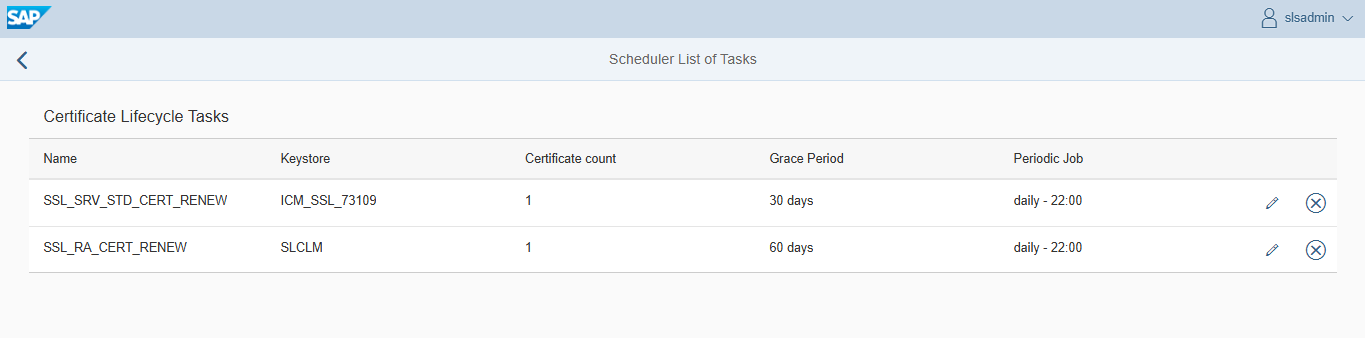
Finally, you may create a scheduled task so renewals run automatically.
The task executes under the currently logged‑in user.
Conclusion
After this configuration, the certificates in AS Java should be renewed regularly before reaching the end of their lifetime.
To organize certificate profiles and control which SAP systems participate in the automation process, you need to create an Application Server Profile Group in the Secure Login Administration Console (SLAC).
This blog is a continuation of the generic setup explained in the blog on this page.
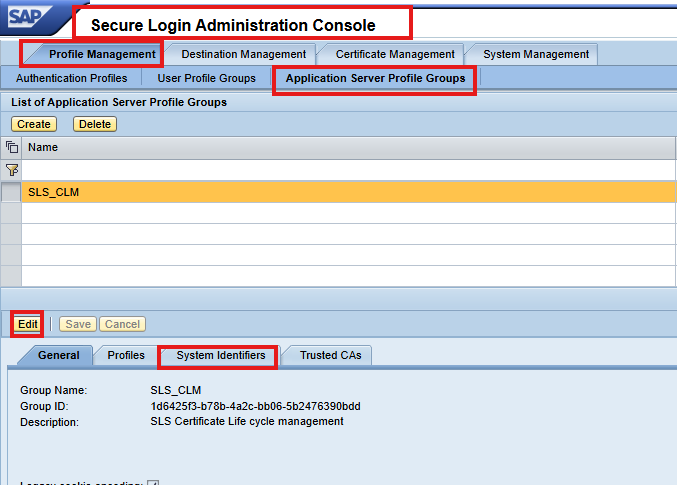
In SLAC, navigate to: Application Server Profile Groups → Create New Group
Give the group a name that clearly identifies its purpose.
2. Assign System Identifiers
Under System Identifiers, add the SIDs of all SAP systems that will participate in certificate renewal. Important notes: SIDs can contain uppercase letters and digits.
3. Configuration on AS ABAP
Configuring ABAP for CLM automation involves running two key reports. Most recent NetWeaver releases already include them, but to ensure you are using the latest versions, SAP recommends implementing the corrections from SAP Note 2452425 – Collective Note – SAP SSO Certificate Lifecycle Management for ABAP.
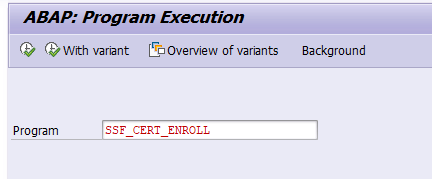
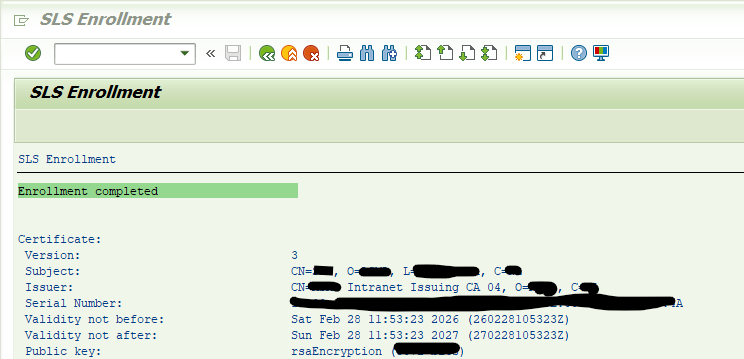
Run the SSF_CERT_ENROLL Report
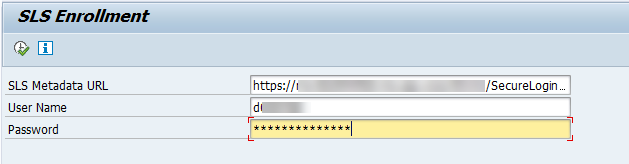
This report performs the initial connection between the ABAP system and Secure Login Server (SLS).
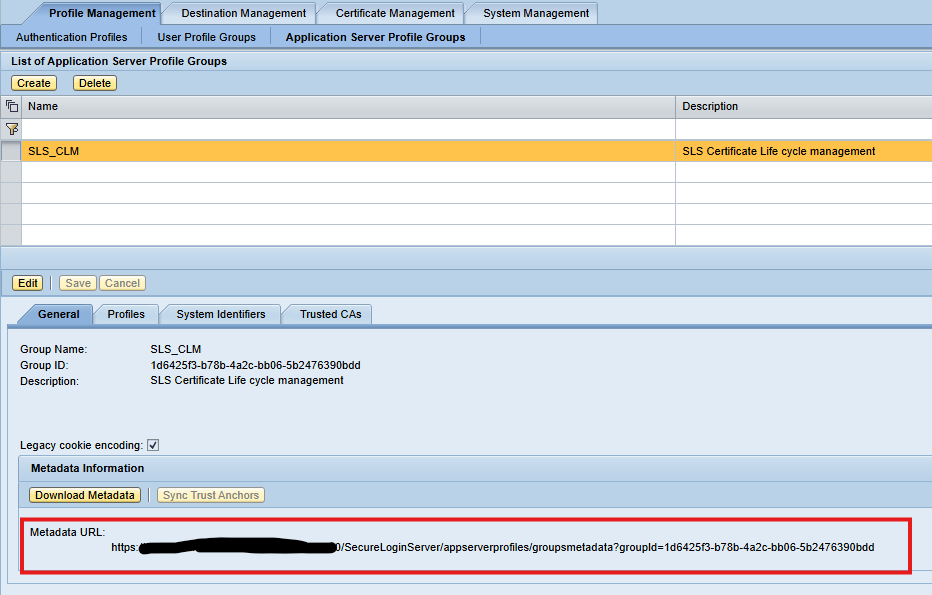
Metadata URL of the Application Server Profile Group in SLS
Technical user with password authentication that is authorized to perform the enrollment
Running this report enrolls the system for the first time and retrieves the required certificate information.
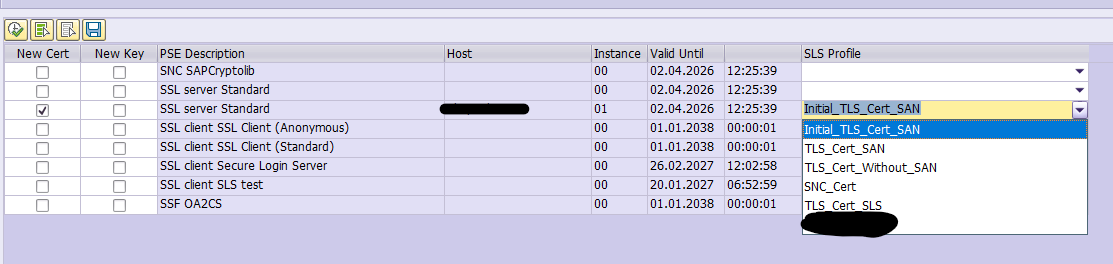
Once the enrollment report has been executed successfully, the system displays an overview of all certificate objects that are available for renewal. This screen also shows the certificate profiles assigned to the different PSEs.
You will see a list of certificate entries along with the available certificate profiles. For each entry:
Choose the appropriate certificate profile
Select the certificates you want to renew
This allows you to control exactly which PSEs should be processed.
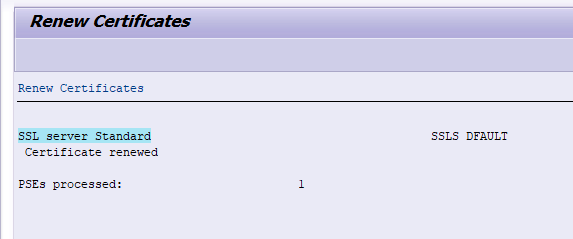
2. Execute the Renewal
After starting the renewal process, the system will update the selected certificates through the Secure Login Server. When the renewal completes successfully, you should receive a confirmation message for each certificate that was processed.
3. Schedule Automated Renewal
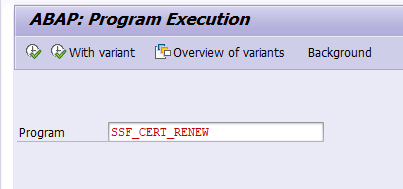
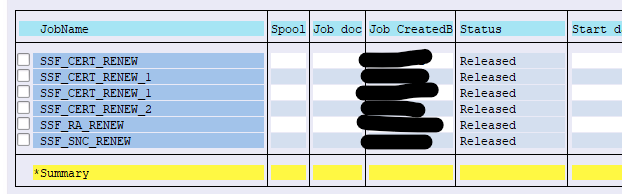
To avoid manual renewals in the future, you should save the selection in a variant and set up a scheduled job of program SSF_CERT_RENEW. You need a batch job per application server and per certificate type.
Conclusion
After this configuration, the certificates in AS ABAP should be renewed regularly before reaching the end of their lifetime.
Digital certificates play a critical role in securing SAP systems—whether for HTTPs communication, SSO, Cloud Connector integration, or internal system‑to‑system traffic. As organizations scale, manual certificate renewal becomes error‑prone and difficult to manage.
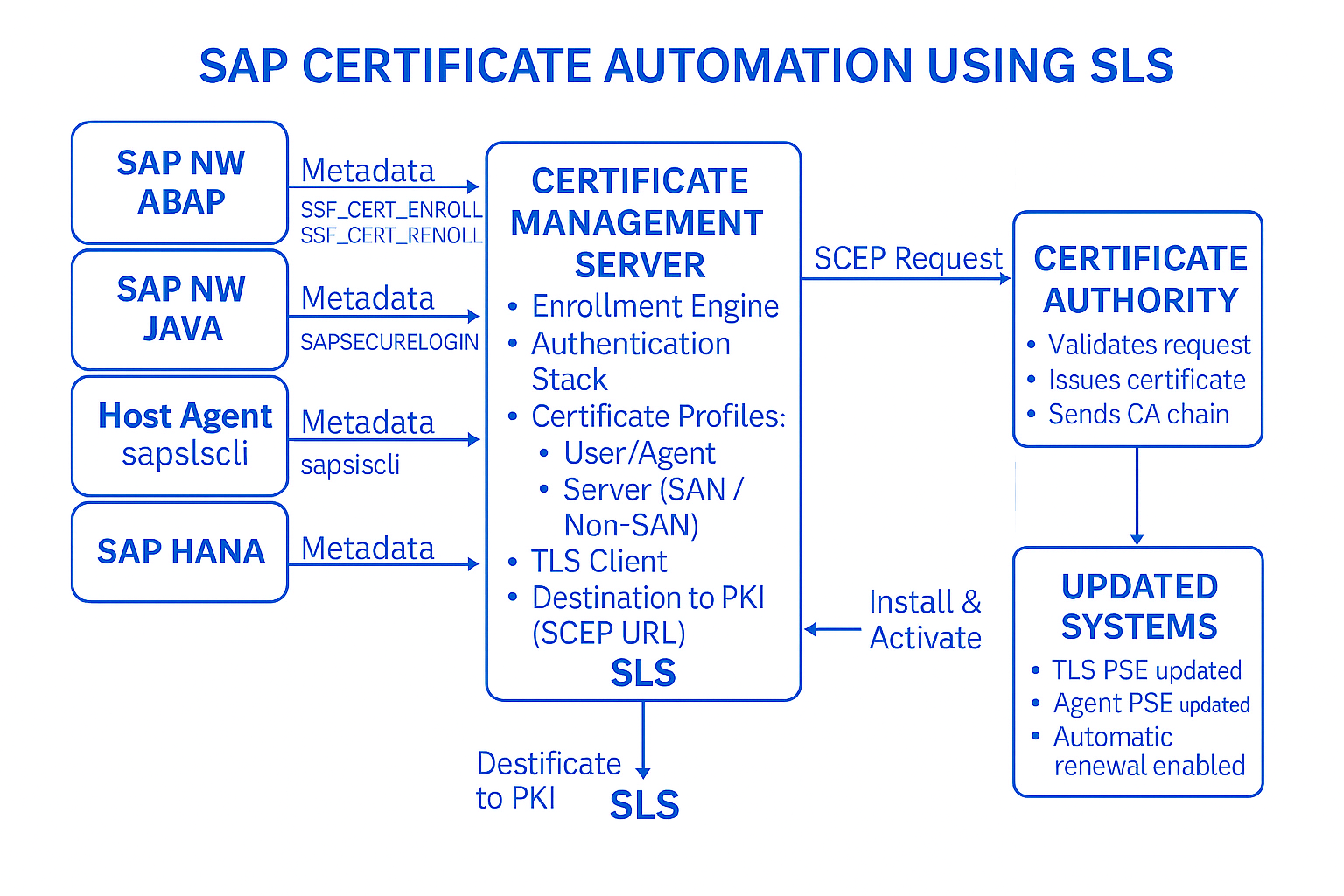
This guide explains how to automate the entire lifecycle of SAP certificate monitoring, renewal, deployment, and validation using standard tools available on any SAP system. The approach is applicable to SAP ABAP, Java, HANA, Web Dispatcher, Content Server and Host Agent environments.
This blog will explain the overview and generic setup. The follow up blogs will describe:
SAP Secure Login Server (SLS) is part of the SAP Single Sign-On product. This is a licensed product, for more information read OSS note 1876552 – License Requirement and Download of Single Sign-On 3.0 from the SAP Software Center. Within SSO, SLS serves as the central component for Certificate Lifecycle Management (CLM), enabling automated renewal of certificates used by:
AS ABAP systems
AS Java systems
SAP Web Dispatcher
SAP Host Agent
Other SAP components requiring HTTPS or SSL
For automation, SAP SLS communicates with a PKI infrastructure. A widely used option is Microsoft NDES, which supports enrollment using the SCEP (Simple Certificate Enrollment Protocol).
This blog describes the configuration in the Secure Login Server and how to connect an AS ABAP as well as an AS Java. Configuring a Remote CA.
This blog assumes that you are familiar with the general Certificate Lifecycle Management process. Before setting up Certificate Lifecycle Management (CLM) with Secure Login Server (SLS), make sure the following requirements are met:
1.1 Secure Login Server Installed You need a working installation of SAP Secure Login Server. SLS can run on any supported, modern SAP NetWeaver AS Java system. Read OSS note 3529951 – SAP Single Sign On 3.0 product compatibility for exact specifications.
1.2 Administrative Access You need a user who can access the Secure Login Administration Console (SLAC) to configure CLM settings.
1.3. Supported SAP Releases Your SAP systems must support the CLM client components:
A user with SLAC_CERT_ADMIN/SLCLM_ADMIN/SLAC_SUPERADMIN or equivalent permissions in the Secure Login Administration Console.
2. Configuration of Destination (Connecting SLS to the PKI / NDES Server
(This step must be completed before creating certificate profiles) Before defining any certificate profiles in Secure Login Server (SLS), you must configure a destination that allows SLS to communicate with your PKI infrastructure (typically Microsoft NDES). SLS uses this destination to forward CSR requests and to retrieve issued certificates, acting as a broker between SAP systems and the PKI server. This is a mandatory step because without a properly configured destination, SLS cannot reach the PKI, and no certificate enrollment or renewal will work.
Open the Destinations Area in NWA In the SLS (AS Java) system:
Go to NetWeaver Administrator (NWA) Navigate to: Configuration → Infrastructure → Destinations
This area allows you to create HTTP/S destinations that SAP components use to reach external systems.
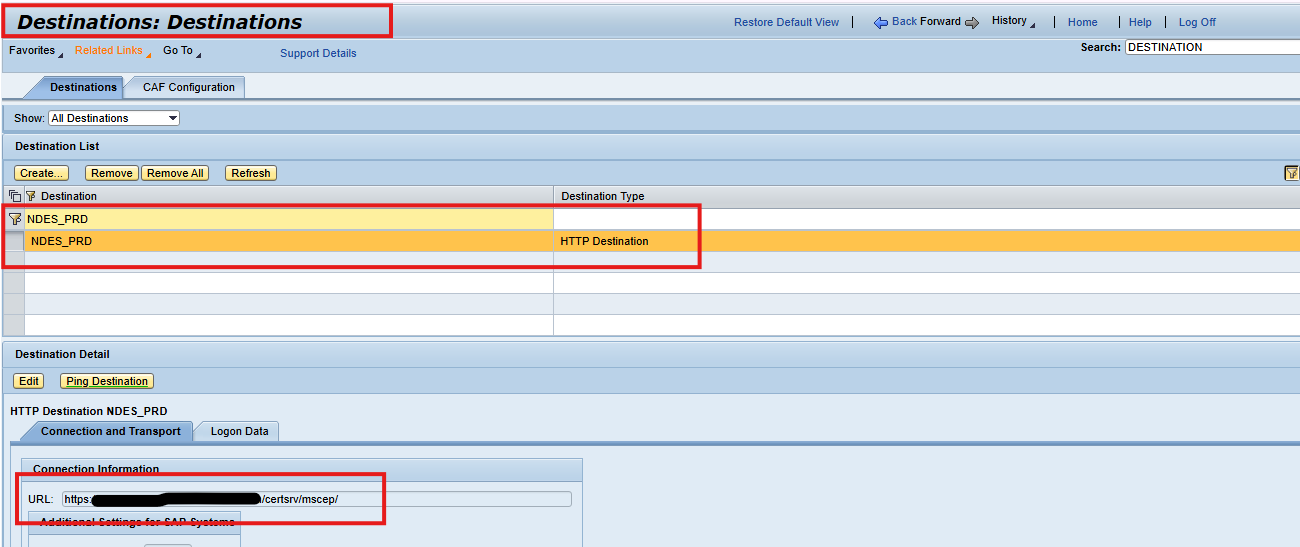
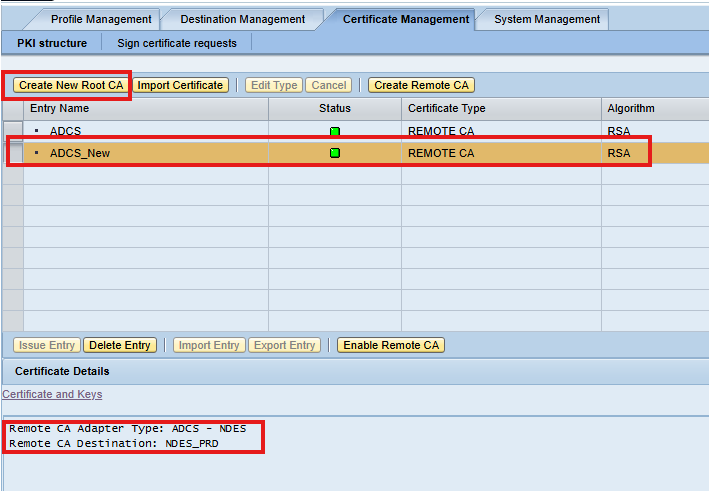
Create a New Destination Create a new destination dedicated to your PKI/NDES server. Recommended Naming Convention Use a name that reflects your PKI or environment (e.g.,): NDES_PROD NDES_QA PKI_SCEP
This improves clarity when assigning the destination later in SLS certificate profiles.
Configure Destination Type Set the destination type to: HTTP Destination, Since NDES SCEP endpoints are exposed over HTTPs, this ensures compatibility.
Enter the SCEP URL of the NDES Server In the Connection Information section, enter the full SCEP endpoint URL of your PKI/NDES server. For example (generic format): https://<ndes-hostname>/certsrv/mscep/
This URL points to the NDES SCEP service used for certificate enrollment.
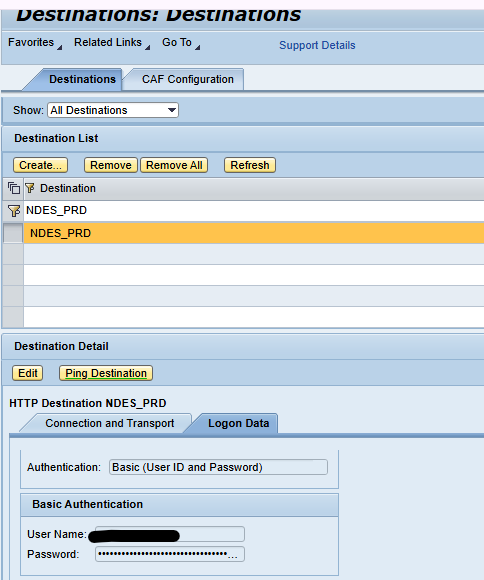
(Optional) Configure Logon Data Depending on your PKI security configuration, you may need to configure:
Basic Authentication with a technical service account Certificates for mutual TLS. No authentication if internal trust is used. This must align with your PKI design.
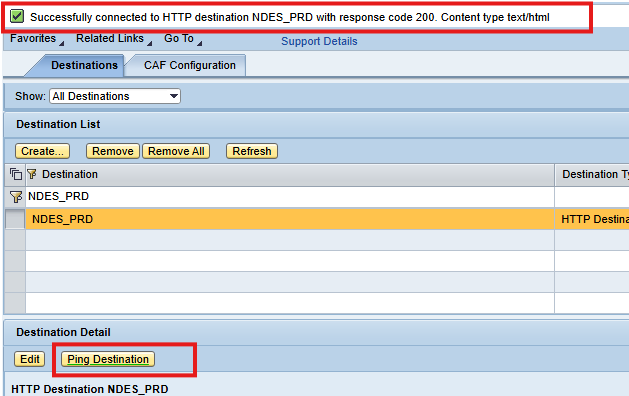
Test the Destination After configuring:
Click “Ping Destination” Ensure the HTTP/HTTPs connection is successful If the response is reachable, SLS can now communicate with NDES
Remark: even though HTTPs is configured, the success message still shows HTTP.
SLS relies on this destination for all CLM certificate operations.
Why this destination is critical This destination is used internally by SLS for:
Forwarding Certificate Signing Requests (CSR) to NDES Receiving signed certificates Validating enrollment responses Triggering certificate renewals Communicating over the SCEP protocol
Without this destination, all profiles (TLS, SNC, Client) and enrollment workflows will fail because SLS would have no path to the PKI infrastructure.
How It Fits Into the Overall CLM Workflow Once the destination is created: SAP System → SLS → (Destination) → NDES/PKI → CA → SLS → SAP System
3.1 Configuring Secure Login Server for CLM
Before you configure anything in the Secure Login Administration Console (SLAC), you must prepare SLS to accept certificate‑based authentication from SAP systems. This requires creating a dedicated logon stack.
The formal SAP help document link can be found here. The steps below describe the summary main steps with clarifying screen shots.
1. Create a Logon Stack in SLS
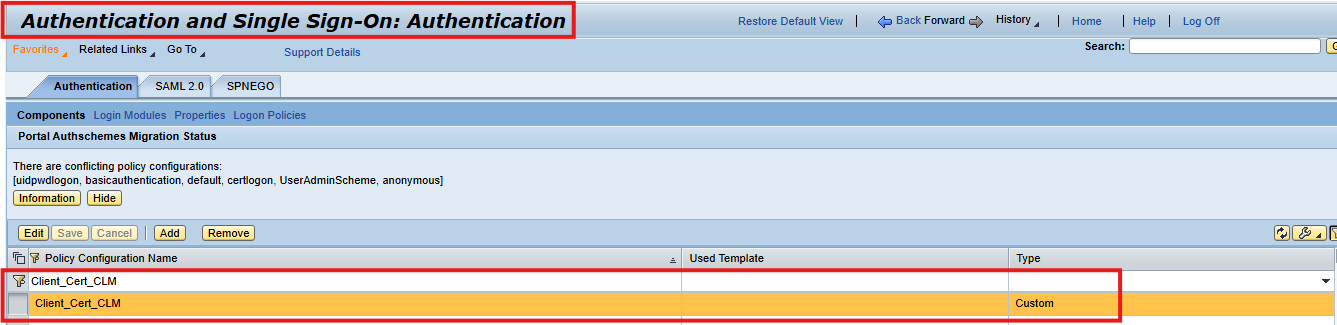
1.1 Create a Logon Stack in NWA
Begin by opening the NetWeaver Administrator (NWA) of the Secure Login Server and navigating to:
Configuration → Authentication and Single Sign‑On → Logon Stacks
Here you create a new logon stack. Choose a name that clearly indicates it is intended for CLM system authentication, such as Client_Cert_CLM
1.2 Steps to Create the Logon Stack
Open the NetWeaver Administrator (NWA) for SLS.
Navigate to: Configuration → Authentication and Single Sign‑On → Logon Stacks
Create a new logon stack with a name that clearly indicates it is intended for CLM client authentication (for example, CLM_ClientAuth).
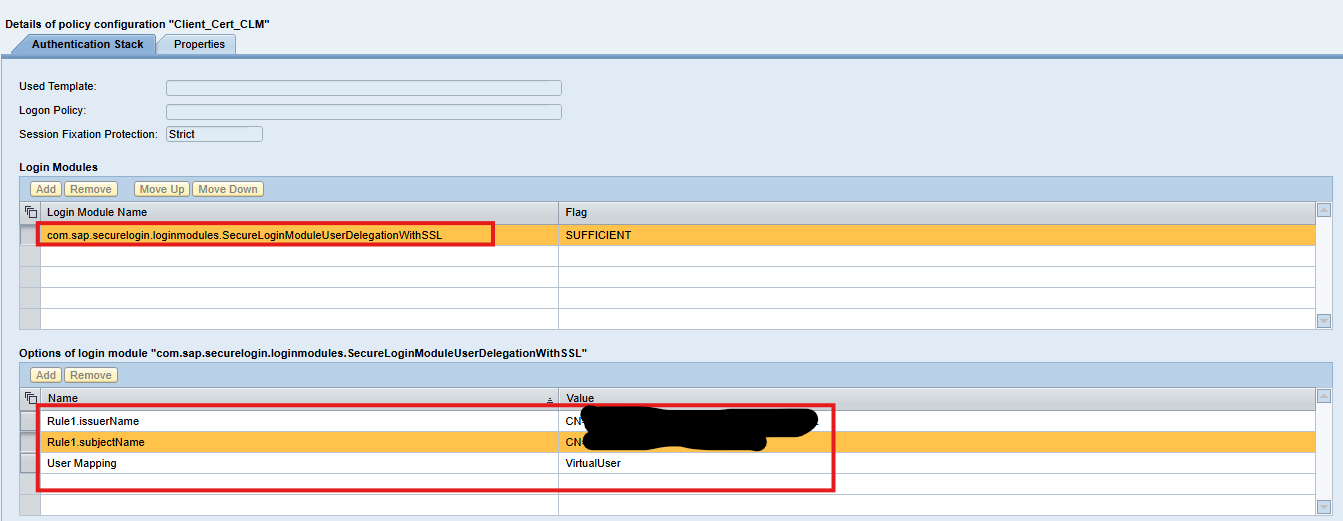
Add a single login module to this stack: SecureLoginModuleUserDelegationWithSSL
**Configure the Three Key Attributes** This module requires three important attributes that control how certificates are validated: 🔹 Rule1.subjectName
Used to filter acceptable certificate subjects using a regular expression. If you set it to the wildcard pattern: (.*)
it effectively accepts any subject. Even with the wildcard, the Common Name (CN) of the system certificate must still match one of the system entries you later configure in the Secure Login Administration Console (SLAC).
🔹 Rule1.issuerName
Controls which certificate issuers are allowed. Typically also set to: (.*)
This disables strict issuer filtering and allows any issuer that SLS already trusts through its root CA store.
🔹 UserMappingMode
Must be set to: VirtualUser
SAP systems do not exist as users in the UME. Therefore, SLS maps each system certificate to a virtual identity, and these identities are filtered and managed later in SLAC.
1.3. Purpose of the Logon Stack
This logon stack is used by every application profile in CLM. It ensures that SAP systems can authenticate securely when requesting new or renewed certificates. This logon stack forms the authentication foundation for all certificate lifecycle operations in SLS. Every CLM application profile will reference it. By configuring:
The SecureLoginModuleUserDelegationWithSSL module, The subjectName and issuerName rules, and Virtual user mapping
You ensure that: ✔ SAP systems authenticate themselves correctly via SSL client certificates ✔ Certificate enrollment and renewal requests are validated through the defined rules ✔ System‑to‑certificate mapping is handled through virtual identities (since systems do not exist in UME) ✔ CLM workflows function seamlessly from initial enrollment through automatic renewal ✔ Every SAP component—ABAP, Java, Web Dispatcher, Host Agent, HANA—can make use of this same logon stack This logon stack is therefore reused across all application profiles in CLM, ensuring consistency and secure handling of certificate requests throughout the entire SAP landscape.
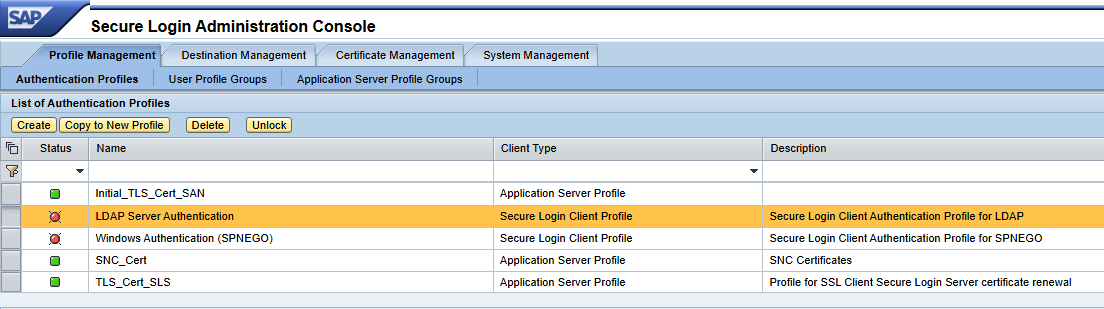
1.4 Configuration of Certificate Profiles
After preparing the logon stack, the next step in setting up Certificate Lifecycle Management (CLM) is to define the certificate profiles inside the Secure Login Server (SLS). These profiles describe what type of certificates SAP systems should request and how SLS should communicate with the backend CA/NDES to obtain them. Each certificate profile represents a specific certificate purpose (such as SNC or TLS) and includes the rules that control certificate enrollment, renewal, and template mapping.
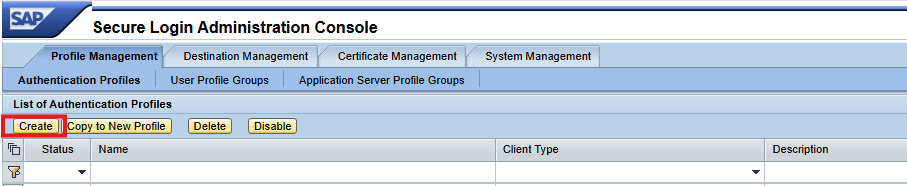
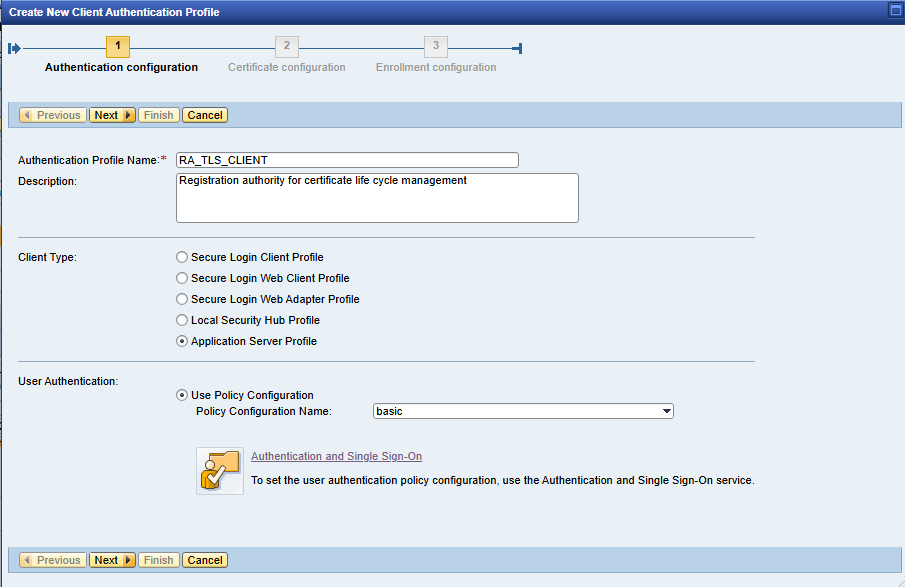
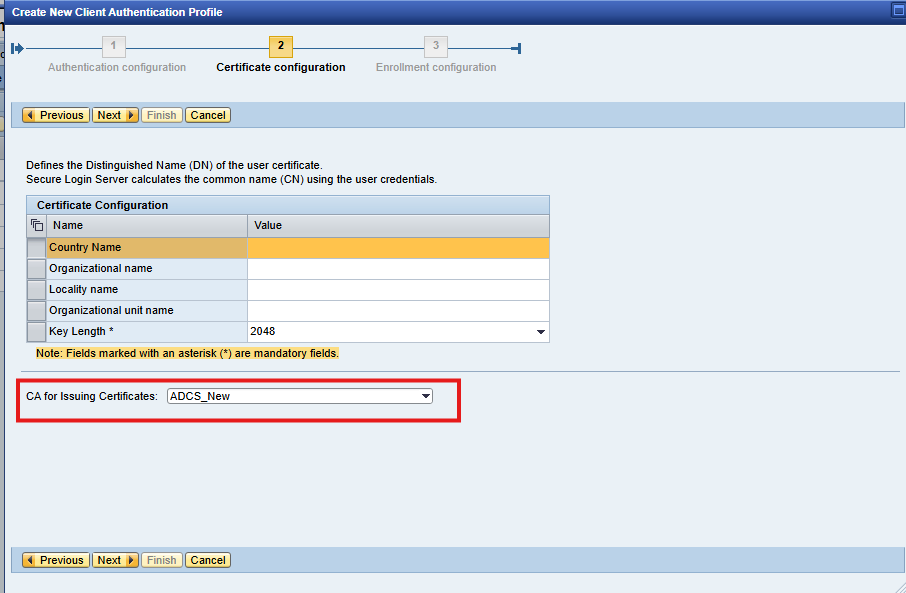
Registration Agent Profile (Used for Enrollment Requests) The first profile that must be created is the Registration Agent (RA) profile. This profile is responsible for handling initial certificate enrollment requests coming from SAP systems. It acts as the “front door” for: Receiving enrollment metadata from SAP components, forwarding Certificate Signing Requests (CSR) to NDES and Returning the signed certificate back to the SAP system. Every system type—ABAP, Java, HANA, Web Dispatcher, Host Agent—uses this RA profile during enrollment.
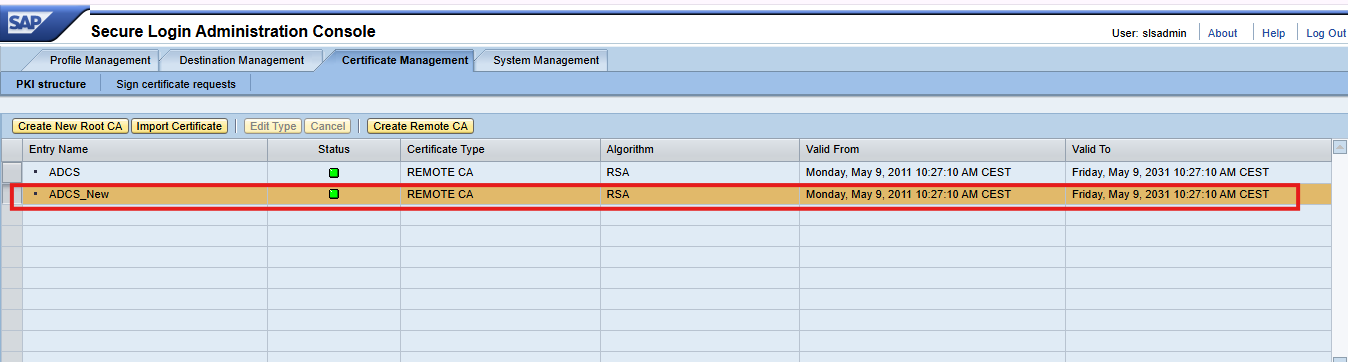
fill the required entry as per organization details. and CA for issuing certificates create PKI structure under certificate management
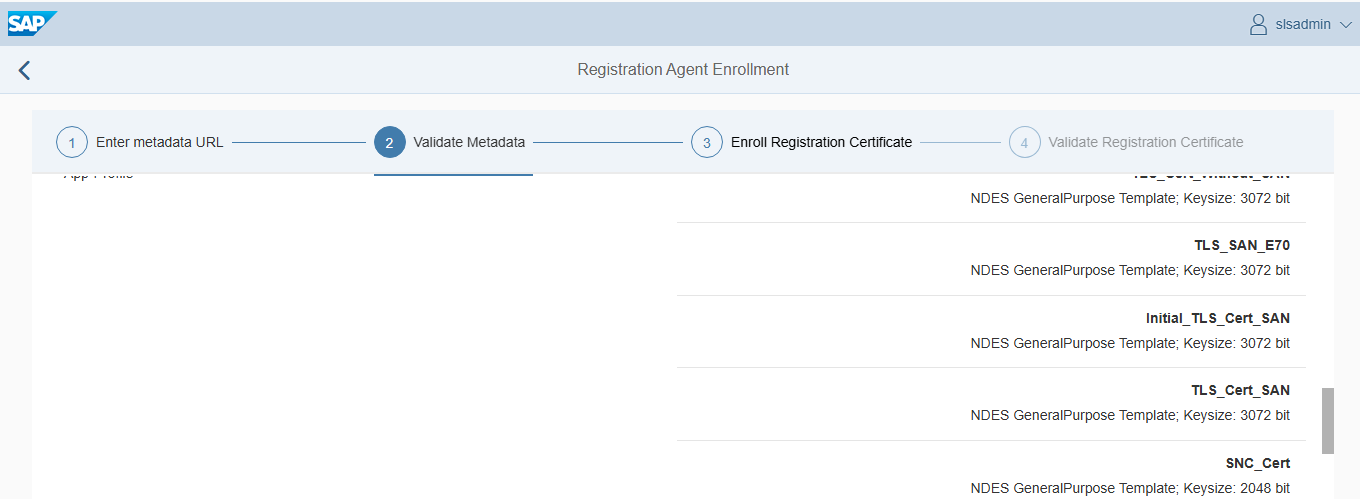
Create Certificate Profiles for Each Required Certificate Type
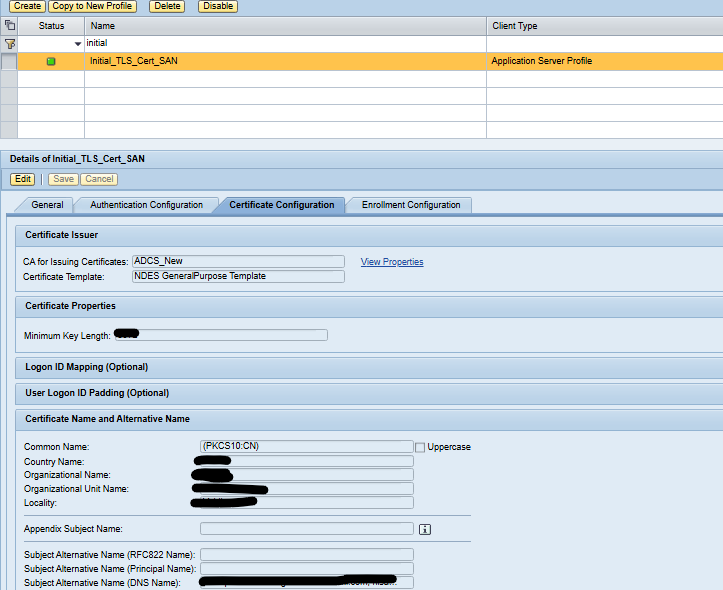
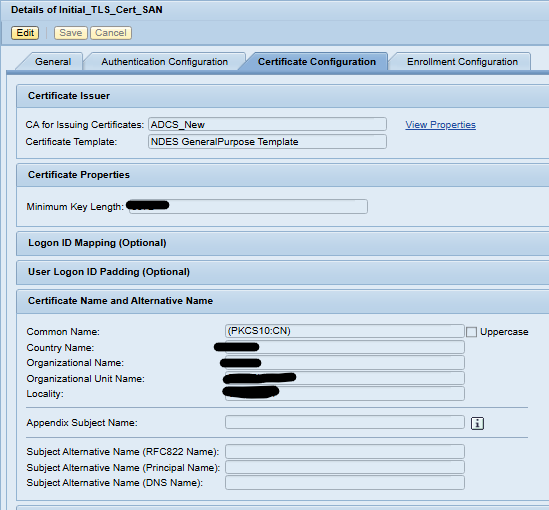
✔ Initial_TLS_Cert_SAN
Used for First‑Time SAN‑Based Enrollment & Renewal and This profile is required for the very first certificate issuance when: You are enrolling a system for the first time and want the initial certificate to follow SAN requirements (as enforced by modern PKI policies)
✔ SNC Certificate Profile
Used for systems that use Secure Network Communication (SNC) with X.509 certificates.
✔ TLS Server Certificate Profile
Disclaimer: This page covers only the architecture and configuration required for SAP certificate automation. For the full enrollment and renewal procedure, please refer to 👉 “SAP Certificate Enrollment & Renewal Automation Process” page dedicated to the operational workflow.